An agent-aware chat sidebar
Notebook Intelligence (NBI) is an AI coding assistant and extensible AI framework for JupyterLab. (This is the second post in a short series on what shipped in NBI 5.0. The first post covered managing Claude’s toolbox of Skills, MCP servers, and Plugins, and the next one looks at coding-agent launchers and the wider platform work.)
When the assistant in the sidebar is a long-running agent rather than a single-shot chat model, the surface around it has to change. An agent works for tens of seconds at a stretch, calls tools, and writes files on disk. A sidebar built for quick question-and-answer turns will look hung while that happens, and your editor tabs will quietly fall out of date. NBI 5.0 reworks the chat sidebar to be agent-aware: it reflects what the agent is doing while it does it, and it keeps your workspace in sync with the changes the agent makes.
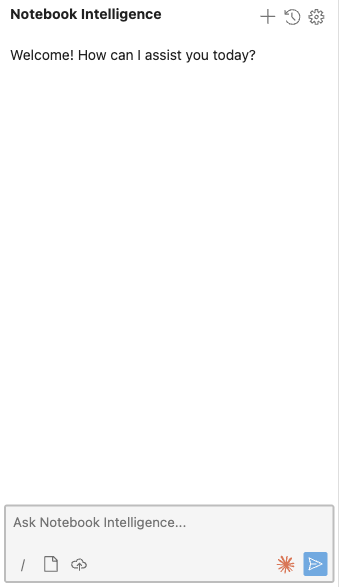
You can see what the agent is doing
A long Claude turn used to give you nothing to look at. The sidebar now shows real progress feedback: an elapsed-time counter so you know how long the turn has been running, a heartbeat-driven pulse that confirms the connection is alive, and inline narration of each tool call so you can read what the agent is reaching for. If a turn runs past 30 seconds, the copy flips to acknowledge that it may be slow, which is honest about expectations instead of leaving you guessing. The point is simple: a working agent should never be indistinguishable from a stuck one.
Your open files stay in sync with the agent’s edits
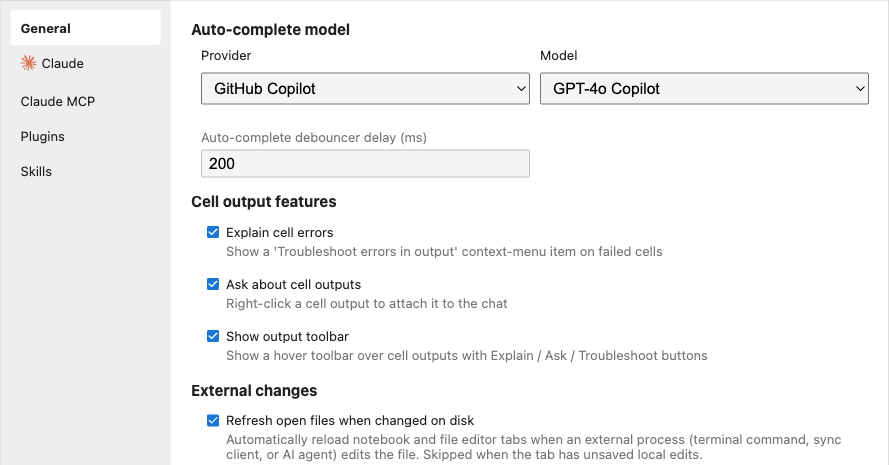
When an agent edits a file, the version you are looking at in an open tab is suddenly stale. You read the old contents, the agent reads and writes the new ones, and the two of you disagree about the state of the world. To close that gap, NBI polls every open document tab and reverts it through the document context when the file on disk is newer than the in-memory model. Tabs with unsaved local edits are skipped, so the feature never throws away work you have in progress.
This is controlled by the refresh_open_files_on_disk_change user setting, which is on by default and lives in NBI Settings under External changes. Administrators can pin it with the NBI_REFRESH_OPEN_FILES_ON_DISK_CHANGE_POLICY policy or the matching traitlet.
Attachments became pointers, not pasted text
In Claude mode, attaching a workspace file no longer means reading its contents in the browser and injecting a fenced code block into the prompt. Instead the backend emits an @<workspace-relative-path> pointer, and Claude’s own Read tool fetches exactly what it needs. That difference matters more than it sounds. The old content-injection path truncated large files and skipped anything it could not turn into text, which ruled out images and made notebooks awkward. With a pointer, the Read tool handles images, large files, and cell-aware notebook reads on the agent side. Notebook cell pointers and text-selection line ranges are preserved, so asking “explain this cell” still has a concrete referent.
Two smaller touches round out attachments. Image context thumbnails now show a hover preview so you can confirm you attached the right picture without opening it. And you can drag a file straight onto a JupyterLab terminal to attach it: a per-terminal toolbar toggle decides whether the drop inserts an @-mention path or a shell-escaped raw path. Drag-drop can be governed by the NBI_TERMINAL_DRAG_DROP_POLICY admin policy, and the shared upload-staging endpoint behind both terminal drops and chat attachments is bounded by NBI_UPLOAD_MAX_MB (default 50) and NBI_UPLOAD_RETENTION_HOURS (default 24).
Links open where you expect
The model often emits markdown links in its replies. Those links used to navigate the top-level document on click, which unloaded your entire Lab session. As of 5.0.1, external links (http, https, and mailto) open in a new tab with target="_blank" and rel="noopener noreferrer". Workspace-relative paths open the referenced file through JupyterLab’s document manager, fragment-only links are rendered as inert text, and disallowed schemes such as javascript: are blocked outright. Clicking a link the agent suggested should take you somewhere, not throw away your work.
Smaller course corrections
A few changes are about teaching the sidebar to do the obvious thing. The Claude system prompt was steered away from over-eager notebook creation: attach a file and ask a question about it, and the agent answers in chat rather than spinning up a fresh notebook to hold its answer. A New chat session button in the header restarts the Claude SDK client, the same as typing /clear, when you want a clean slate. A first-run tour points out the gear, the file-attach button, the chat-mode dropdown, and the Claude session history icon when it is available; it is capability-aware, so it skips steps for CLIs you do not have installed, and you can replay it any time from the command palette with “Show NBI tour”. Finally, a global Ctrl/Cmd+Shift+L shortcut focuses the chat input from anywhere in Lab, so getting a question to the agent never requires reaching for the mouse.
Taken together, these changes make the sidebar a faithful window onto the agent: you can see it work, trust that your files match what it did, and point it at the right context without fighting the UI.
This is part 2 of a 3-part look at what is new since NBI 4.8. See also Managing Claude’s toolbox: Skills, MCP, and Plugins and Coding-agent launchers, Codex, and a hardened platform.